If you’ve ever tried to build a “loop” in Make.com or n8n to copy a Google Drive folder structure, you know the pain. It’s a brittle, complex mess of nested modules that breaks the moment you add a subfolder to your template. Even worse? Your automation can’t copy or create any non-Google files like .zip archives, .psd design files, or video assets.
It was such a bottleneck in my automations and AI Agents. So I built the fix.
This is a simple Google Apps Script that you deploy as a Web App in about 5 minutes. It acts as a hybrid API that can copy any folder structure—including all subfolders, Google Docs, Sheets, and binary files—with a single HTTP call. It returns a complete JSON “map” of every new file and folder ID, and it saves that map inside the copied folder so AI agents or future automations can instantly navigate the structure.
Here’s how to set it up and use it to replace your 20-step automation nightmare, setting up templated folders with a single, reliable call.
The Problem: Why Your Automation Tool Can’t Copy Folders
No-code automation platforms like Make.com and n8n are brilliant for linear or agent workflows. But they struggle with four critical problems when it comes to copying Google Drive folders:
1. The Recursive Looping Nightmare
To copy a folder structure in Make or n8n, you need to:
- Create the main folder
- Search for all subfolders in the source
- Loop through each subfolder
- Create matching folders in the destination
- For each of those, search for their subfolders
- Loop again…
This requires complex nested loops, iterator modules, and aggregator logic. It’s slow, fragile, and impossible to maintain. If you add a new “Assets” folder to your template, the entire automation can break.
2. The File Type Limitation
Standard Google Drive modules in automation platforms can handle Google Workspace files (Docs, Sheets, Slides). But they often fail on binary files—the very files you need in a real project template:
.ziparchives with brand assets.psdor.aidesign files.mp4video templates.pdfcontracts or guides
The script uses Google’s native file.makeCopy() method, so it copies everything perfectly.
3. The Credit and Bandwidth Black Hole
This is where it gets expensive and slow. Let’s say you’re copying my podcast episode template: 49 folders and 18 files.
In Make.com or n8n, you’d need:
- 49 API calls just to create the folders
- 18 API calls to copy the files
- Dozens more to search and match folder IDs
- Every file gets downloaded to Make/n8n’s servers, then re-uploaded to Drive
That’s potentially 100+ operations (and credits), plus massive bandwidth usage.
With this script:
- 1 API call. That’s it.
- 1 operation credit in Make/n8n
- Zero bandwidth through Make/n8n, Google Drive handles everything server-side
- Execution time: ~84 seconds for 49 folders + 18 files
The script uses Google’s own infrastructure, so files are copied directly between Drive locations without ever leaving Google’s network. It’s faster, cheaper, and uses just one credit regardless of how complex your template is.
My Old Solution (And Its Limits)
I previously wrote a .zip extractor script that could create folder structures from archive files. It was great for scaffolding, but it had a massive limitation: it couldn’t handle existing content.
If your template folder contained pre-filled Google Docs, tracking spreadsheets, or reference materials, the old script was useless. You’d still need to manually copy those files or build complex automations.
This new script is the complete rewrite I needed. It’s not just a folder creator—it’s a full template duplicator.
The Solution: A Hybrid Google Apps Script API
This script does five things that make it irreplaceable:
1. Copies Everything
Folders, subfolders, Google Workspace files, and binary files. No exceptions.
2. Returns a Complete JSON Map
The response includes the ID, URL, path, size, MIME type, and creation time of every single file and folder created. You also get execution time so you can gauge performance. No more “Search for the folder I just made” modules.
3. Saves the Map Inside the Folder
The script creates a _folder_structure_report.json file inside the new folder. This makes the folder “self-describing” for AI agents or future automations. (You can change this file name in the script config setup, see below).
4. Hybrid Sync/Async Modes
This is the game-changer. The script adapts to your needs:
- Sync Mode (default): Fast jobs that finish in under 300 seconds (5 minutes). Your automation waits for the full response.
- Async Mode: Large jobs that take minutes. The script instantly returns a
jobId, does the work in the background, and POSTs the final JSON to your webhook when done. This completely bypasses Make/n8n timeouts.
5. Secure by Design
The script uses Google’s PropertiesService to store your API key. Even though the Web App URL is public, any request without your secret key is immediately rejected.
Configuration Options
Before you deploy, you can customise the script’s behaviour by editing the CONFIG object at the top of the code:
const CONFIG = {
  JSON_REPORT_FILENAME: '_folder_structure_report.json',
  SAVE_JSON_REPORT_DEFAULT: true,
  JOB_EXPIRATION_SECONDS: 21600,
  JOB_QUEUE_PROPERTY_NAME: 'JOB_QUEUE'
};
Key settings:
JSON_REPORT_FILENAME: Change the name of the JSON report file saved in the copied folder (default:_folder_structure_report.json)SAVE_JSON_REPORT_DEFAULT: Set tofalseif you don’t want the JSON file created by default (you can still enable it per-request with"saveJsonOutput": true)JOB_EXPIRATION_SECONDS: How long async jobs stay in cache (default: 6 hours / 21,600 seconds)
You can also override the JSON save behaviour on each API call:
{
  "apiKey": "your_key",
  "sourceFolderId": "...",
  "destinationFolderId": "...",
  "newFolderName": "My Project",
  "saveJsonOutput": false
}
i.e. If the config is create a JSON report is set to: true, but for some reason you don’t want to output the JSON file to the folder you are copying, then you can overwrite it with “saveJsonOutput”: false. But the JSON will still be returned to the POST request, so you can use the info in that automation.
How to Set Up the Folder Copier API (Step-by-Step)
Step 1: Get the Code from GitHub
Grab the full script from the GitHub repository. You’ll find main.gs with the complete, heavily-commented code.
Step 2: Create a New Apps Script Project
- Go to script.google.com
- Click New project
- Give it a name (e.g., “Drive Folder Copier”)
- Delete the placeholder code and paste in the entire contents of
main.gs
(Or navigate to the folder you want to save this utility script, then click the ‘New’ button in drive, then hover over the ‘more’ menu item and select Google Apps Script’.)
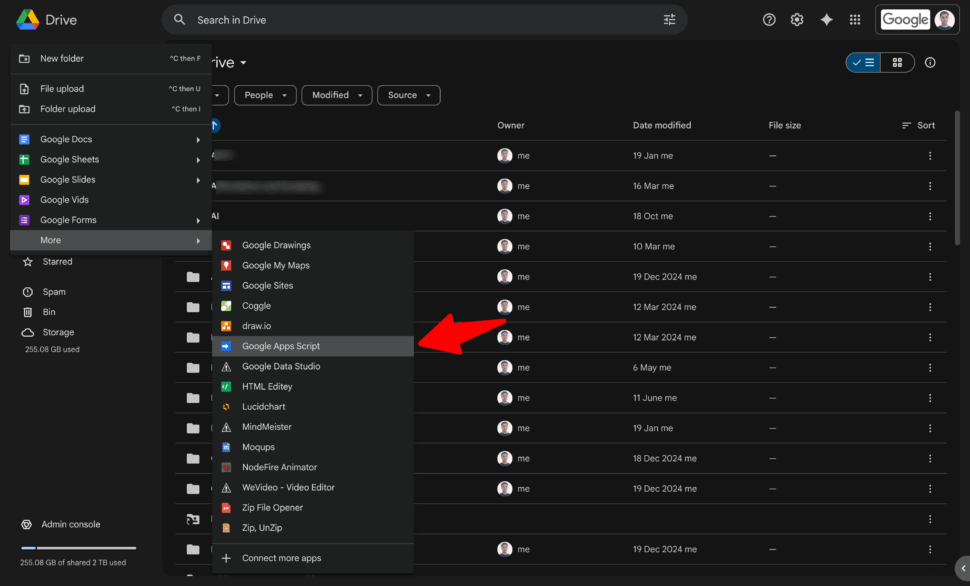
Step 3: Set Your Secure API Key
This is critical for security.
- In the Apps Script editor, click the gear icon (Project Settings) on the left
- Scroll to Script Properties
- Click Add script property
- Property:
API_KEY - Value: Your secret key (use a key generator to create something strong – it is just a key you create to keep your script safe… it’s not a key provided by Google, n8n or Make etc)
- Click Save script properties
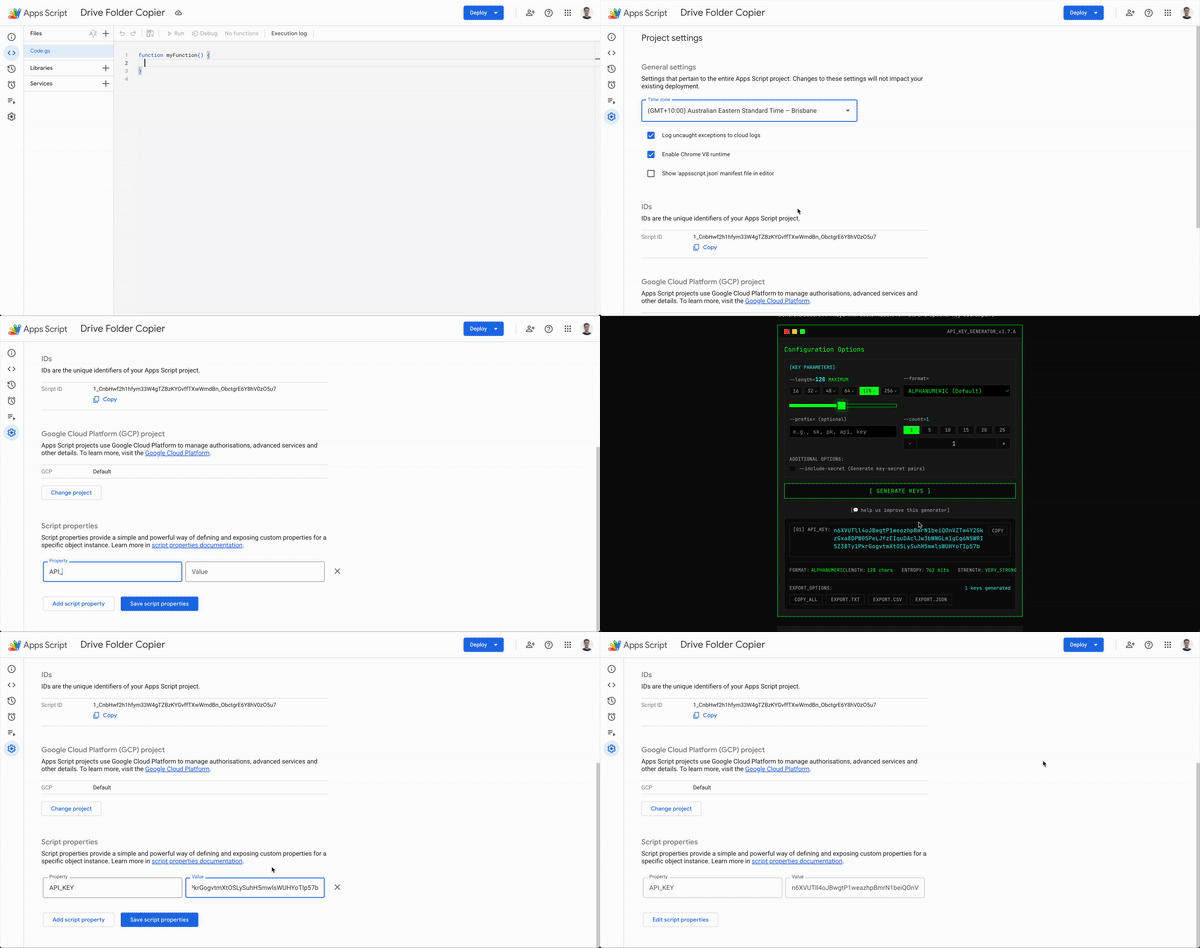
This is the professional way to handle secrets. The key never appears in your code, so it’s safe even if you share the script.
Step 4: Deploy as a Web App (And Authorise)
- At the top right, click Deploy → New deployment
- Click the gear icon and select Web app
- Fill in the settings:
- Description: “v1 – Folder Copier”
- Execute as: Me (this is required—more on this below)
- Who has access: Anyone
- Next Click Deploy
- Google will ask you to authorise. Click through the prompts:
- Click Authorise access
- Choose your account
- Select all the permissions and click Allow
- Copy the Web App URL. This is your API endpoint.
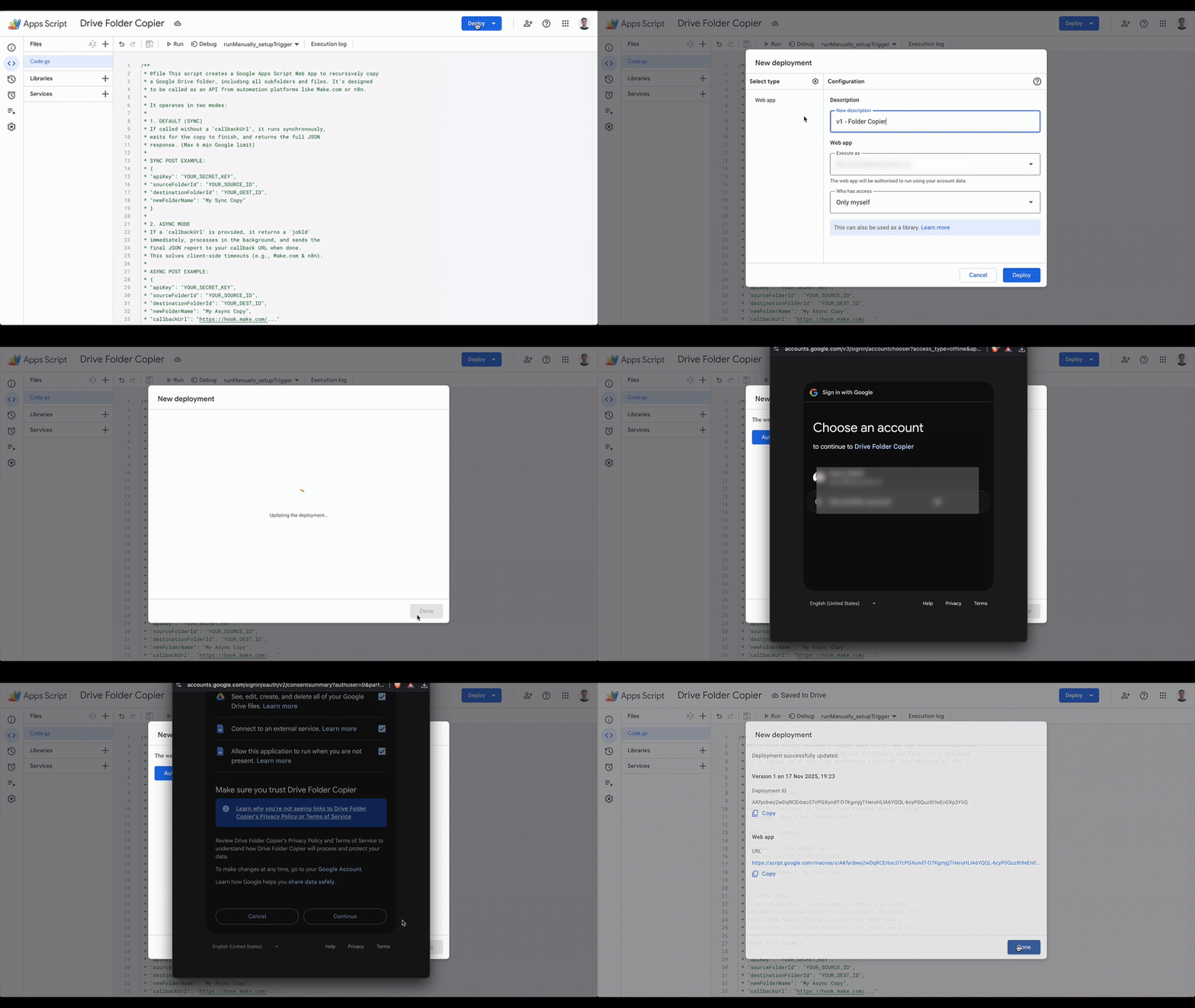
Wait—”Anyone” sounds insecure!
It’s not. The URL is public, but the script’s first action is to validate your secret API_KEY. Without the key, all requests are rejected with an “Unauthorised” error. This is secure.
Step 5: (Optional) Set Up the Async Trigger
You only need this if you plan to use asynchronous mode.
- At the top of the editor, select runManually_setupTrigger from the function dropdown
- Click Run
- Authorise if prompted
This creates a 1-minute trigger that processes the job queue in the background. If you never use async mode, you can skip this.
To remove the trigger later: Run runManually_removeTrigger the same way.
How to Use the API (Two Modes for Every Use Case)
The beauty of this script is that it’s one API, two modes. The only difference is whether you include a callbackUrl in your request.
Mode 1: Synchronous (Default) – For Fast (Almost All) Jobs
When to use: Most templates (under 300 seconds to copy). Your automation will wait for the full response.
Example POST Request (from Make.com or n8n HTTP module):
{
  "apiKey": "your_secret_key_here",
  "sourceFolderId": "1c_AZq6de...YOUR_SOURCE_ID...Yq9c",
  "destinationFolderId": "1Vu5dewd...YOUR_DESTINATION_ID..._b4",
  "newFolderName": "Episode 042 - Guest Name",
  "saveJsonOutput": true
}
(If you have already set the SAVE_JSON_REPORT_DEFAULT: true in the config, you don’t have to include it each time.
What happens:
The script runs the entire copy operation (which might take 2 minutes), then returns the complete JSON response. Make/n8n receives this and can immediately use the file IDs in the next module.
Example Response:
{
  "success": true,
  "data": {
    "timestamp": "2025-11-16T04:35:43.123Z",
    "mainFolder": {
      "name": "Episode 042 - Guest Name",
      "id": "1zgoif-dYoLTImksXjmSqoqIN2cRPwF44",
      "url": "https://drive.google.com/drive/folders/1zgoif-..."
    },
    "summary": {
      "totalFiles": 18,
      "totalSize": 17,
      "folderCount": 49,
      "executionTime": "83.64 seconds"
    },
    "folderStructure": { ... }
  }
}
Mode 2: Asynchronous (with a Webhook) – To Beat Timeouts
When to use: Large templates that take minutes to copy. This is the fix for Make/n8n’s 60-second timeout.
Example POST Request:
{
  "apiKey": "your_secret_key_here",
  "sourceFolderId": "1c_AZq6de...YOUR_SOURCE_ID...Yq9c",
  "destinationFolderId": "1Vu5dewd...YOUR_DESTINATION_ID..._b4",
  "newFolderName": "Production Run 2025-Q1",
  "saveJsonOutput": true,
  "callbackUrl": "https://hook.make.com/your-unique-webhook-id"
}
What happens:
Step A (Immediate Response):
In less than 1 second, the script returns:
{
  "success": true,
  "jobId": "a1b2c3d4-e5f6-7890-g1h2-i3j4k5l6m7n8",
  "message": "Job accepted and queued for processing."
}
Your Make/n8n automation is happy and continues to the next step. No timeout.
Step B (Background Processing):
The script adds the job to a queue. Within 1 minute, the trigger fires, processes the job (which might take 4 minutes), then POSTs the complete JSON to your callbackUrl:
{
  "success": true,
  "jobId": "a1b2c3d4-e5f6-7890-g1h2-i3j4k5l6m7n8",
  "data": {
    "mainFolder": { ... },
    "folderStructure": { ... },
    "summary": {
      "totalFiles": 18,
      "folderCount": 49,
      "executionTime": "83.64 seconds"
    }
  }
}
Your webhook receives this, and the next part of your automation can process the new folder structure.
What You Get Back: A Usable JSON “Map”
The JSON response isn’t just a “success” message. It’s a complete blueprint of everything the script created.
Here’s a snippet from the full example output:
{
  "mainFolder": {
    "name": "My Podcast Episode Folders",
    "id": "1gk6VCjqTw8rahI8GoFciyD-q9RnDMWrm",
    "url": "https://drive.google.com/drive/folders/1gk6VCj..."
  },
  "summary": {
    "totalFiles": 18,
    "totalSize": 17,
    "folderCount": 49,
    "executionTime": "83.64 seconds"
  },
  "folderStructure": {
    "name": "My Podcast Episode Folders",
    "subFolders": {
      "01_Pre-Production": {
        "id": "1Aa_89SUMfIyJ68eIkcy_gbRH6WTwCxzl",
        "url": "https://drive.google.com/drive/folders/...",
        "subFolders": {
          "Guest-Research": {
            "id": "1Vqw0Qy-ylAfjpXgrlmcCgnddqUgVG2f0",
            "files": {
              "Henry's Thoughts / Notes": {
                "id": "1FF2IKISe7ty7QqARQH6FjTirwcVR_Bqa...",
                "url": "https://docs.google.com/document/d/...",
                "path": "My Test Episode Folders/01_Pre-Production/Guest-Research",
                "size": 1,
                "mimeType": "application/vnd.google-apps.document",
                "createdTime": "2025-11-16T13:31:16.118Z"
              }
            }
          }
        }
      }
    }
  }
}
Why this is powerful:
You don’t need to “Search for the folder I just created.” The response gives you all the IDs and URLs, ready for the next step in your automation. Want to upload a file to the “Guest-Research” folder? You already have its exact ID.
Even better, the script saves this JSON as _folder_structure_report.json inside the new folder. AI agents can read this file to instantly navigate the structure without searching.
Real-World Use Cases
I use this script constantly across my businesses:
Personal Workflows
Podcast Production: Every time I record a new episode for the Absolutely Awesome Podcast, this script copies my episode template folder, creating the full structure for pre-production notes, raw footage, post-production files, publishing assets, and analytics—all pre-organised with placeholder documents. 49 folders + 18 files = 1 API call = 1 credit in Make.com & n8n.
Content Creation: For every blog post, video, or social campaign I create (for Oh Crap, Absolutely Awesome, or my personal brand), I copy a content template with briefing docs, asset folders, and publishing checklists.
Business Operations
Production Runs at Oh Crap: When we start a new manufacturing batch, I copy a production folder template with quality control checklists, supplier documentation, and logistics tracking.
New Product Development: Every new product gets a standardised folder structure with design files, compliance docs, supplier quotes, and marketing briefs.
Client & Consulting Work
Short-Term Rental Management: A client in the Airbnb management space uses this to copy a property template every time they onboard a new listing, complete with legal docs, maintenance schedules, guest guides, and financial tracking.
Agency Client Onboarding: Marketing and creative agencies use this to instantly set up new client workspaces with discovery docs, contract templates, asset libraries, and campaign folders.
More Use Case Ideas
Think beyond simple folder copying:
Software Development: Copy a project starter template with README, config files, documentation folders, and test suites.
Event Planning: Template folders for each event type (conference, workshop, webinar) with runsheets, vendor contracts, and asset checklists.
Legal Practices: Case file templates with client intake forms, evidence folders, correspondence logs, and court filing structures.
Education: Course templates with lesson plans, student resource folders, assessment rubrics, and grading spreadsheets.
Real Estate: Property templates with inspection reports, compliance certificates, marketing materials, and settlement docs.
Extending the Script: Building an AI Command Layer
Here’s where it gets really interesting. Right now, you need to provide folder IDs manually. But you can extend this into a natural language command system for AI agents.
Option 1: Pre-Programmed Wrapper Scripts
Create a library of Google Apps Script functions that call the main copier with pre-set folder IDs:
function setupPodcastEpisode(episodeName) {
  const SOURCE_ID = "1c_AZq6de..."; // Your podcast template
  const DEST_ID = "1Vu5dewd...";    // Your production folder

  return copyFolderStructure(SOURCE_ID, DEST_ID, episodeName, true);
}
Your AI agent just needs to know the function name and the episode name. One call, done.
Option 2: Database-Driven Templates
Store your template configurations in a Google Sheet or external database:
| Template Name | Source Folder ID | Destination Folder ID | Description |
|---|---|---|---|
| Podcast Episode | 1c_AZq6de… | 1Vu5dewd… | Full episode structure |
| Oh Crap Production | 1Fdk3n2a… | 1Ghr8m9z… | Production run tracking |
| New Client | 1Jkl4p5q… | 1Mnr6s7t… | Agency client workspace |
Your AI agent can query this database by template name, retrieve the IDs, then call the copier script. Now you can say in natural language: “Set up a new podcast episode folder for Dr. Rob Chen” and the agent does the rest.
Option 3: MCP (Model Context Protocol) Server
For advanced implementations, wrap this script in an MCP server. AI assistants like Claude can then directly call these functions using natural language:
User: "Create a new client folder for Acme Corp"
Claude: [calls setup_client_folder with name="Acme Corp"]
The MCP server translates this into the proper API call with the right folder IDs, handles authentication, and returns the structured result to Claude.
Pro Tips & Organisation
Keep Your Scripts Organised
I create a folder in the root of my Google Drive called zz - Drive Scripts (or zz - Drive Utils on some drives). This is where all my automation scripts, helper apps, and config files live.
Why zz -? Because it sorts to the bottom of any folder list alphabetically. Your Drive root stays clean, but the scripts are always easy to find.
Link to Live Make.com Scenarios
I’m happy to share public links to actual Make.com scenarios using this script. These show the full integration, how the HTTP module calls the API, how the response is parsed, and how the folder IDs flow into subsequent modules. Contact me if you’d like to see real examples.
Adjust the Async Trigger Frequency
The default 1-minute trigger uses about 25 minutes of your daily quota (90 minutes free, 6 hours on paid). If you want to save quota, you can change it:
// Fast response (default)
ScriptApp.newTrigger('processJobQueue').timeBased().everyMinutes(1).create();

// Balanced
ScriptApp.newTrigger('processJobQueue').timeBased().everyMinutes(5).create();

// Quota-saving (slower response)
ScriptApp.newTrigger('processJobQueue').timeBased().everyHours(1).create();
The trade-off is response time. With hourly checks, a job could wait 59 minutes before starting.
Limitations & Important Notes
The “Execute as Me” Requirement
The script must run with the deployer’s permissions. This is why you set “Execute as: Me” during deployment.
What this means:
- The script uses your Google Drive quotas
- It can only access folders you have permission to access
- If you’re setting this up for a client, they must deploy it from their account
The consultant’s dilemma:
This setup is perfect for personal use or internal company tools. But it’s “janky” for professional consulting. Your client needs to go through the scary “Authorise” and “unsafe” warning screens themselves.
Google’s Execution Limits
Both sync and async modes are subject to Google’s 6-minute execution limit. For the vast majority of folder templates, this is plenty. But if you’re copying thousands of large video files, the job might timeout.
In practice, I’ve never hit this limit. My largest podcast template (49 folders, hundreds of pre-filled docs) copies in about 84 seconds.
Rate Limiting
The script includes basic rate limiting (1 request per second per user in sync mode). For normal automation use, you’ll never notice this. If you need to copy dozens of folders simultaneously, use async mode with multiple jobs.
Stop Looping, Start Copying
If you’ve ever built a folder-copying automation in Make or n8n, you know the pain. It’s a complex, brittle mess that fails on timeouts and can’t handle binary files. Worse, it wastes hundreds of credits and clogs your bandwidth.
This script turns that 20-step nightmare into a single, reliable API call. It copies everything, returns a complete map, solves the timeout problem with async mode, and does it all for one credit regardless of template size.
The best part? You can deploy it in 5 minutes and start using it today.
Get the full script on GitHub →
Star the repo if you find it useful, and I’d love to hear how you’re using it, drop a comment below with your use case!
Frequently Asked Questions
How do I automatically copy a folder template in Google Drive?
Use this Google Apps Script deployed as a Web App. It acts as an API that recursively copies an entire folder structure, including all subfolders and files. This is ideal for automating project setups from platforms like Make.com or n8n.
Can Make.com or n8n copy a Google Drive folder with subfolders?
Not reliably. While you can build complex loops, they’re brittle, hard to maintain, often fail on non-Google file types (like .zip or .psd), and waste hundreds of operation credits. This Google Apps Script API turns the entire operation into a single, reliable HTTP call.
How much does this save in Make.com or n8n credits?
Massively. A typical podcast template with 49 folders and 18 files would require 100+ operations in Make/n8n. With this script, it’s 1 operation = 1 credit, regardless of template complexity.
How do I fix n8n or Make.com timeouts with Google Drive?
This script solves client timeouts using its asynchronous mode. By providing a callbackUrl in your API request, the script immediately returns a jobId and does the heavy lifting in the background. When complete, it sends the full JSON report to your webhook URL, bypassing the 60-second client-side timeout.
Is it safe to set a Google Apps Script to “Anyone” access?
Yes, if you secure it internally. This script uses a secret API_KEY in PropertiesService, so any request without the key is immediately rejected with an “Unauthorised” error. The URL is public, but the script is secure.
Can I customise the JSON report file name?
Yes! Edit the CONFIG object at the top of the script. You can change JSON_REPORT_FILENAME to whatever you want, and set SAVE_JSON_REPORT_DEFAULT to false if you don’t want the JSON file created by default.