You’ve got a Google Drive URL from a form submission, a spreadsheet row, or a ClickUp task. However, your automation in Make.com, or another tool, requires the document ID, not the full URL.
Most automation builders solve this by adding a “Text Parser” module to their Make.com scenario or a “Function” node in n8n. It works. But here’s what nobody tells you: this approach has two hidden costs that get exponentially worse as you scale.
Problem 1: Maintenance Hell. You’ve copied and pasted that same regex parser into 15 different scenarios. If Google ever changes its URL structure, you’ll have to hunt through every workflow to fix it.
Problem 2: Batch Processing Bankruptcy. Processing 100 URLs? That’s 100 operations in Make.com. Processing 1,000? You’ve just burnt through your monthly operation limit.
Here’s a better approach: I’ve built a free, open-source API that addresses both problems. One HTTP call. Works for single URLs or batches of thousands. Maintainable in one place. And it’ll save you a fortune on operations.
Let me show you exactly how it works and why it’s a game-changer for anyone building production-grade automations.
The Problem: Why Your Inline “Text Parser” is Costing You
Argument 1: It Violates the “DRY” Principle (Maintenance Hell)
If you’ve built more than a handful of scenarios, you’ve probably done this: found a regex pattern that works, copied and pasted it into a Text Parser module, and moved on.
Fast-forward six months. You’ve built 20 scenarios that use Google Drive. Then Google tweaks their URL structure (it’s happened before), and suddenly your regex breaks.
Now what? You have to open 20 different scenarios, find the Text Parser module, and update the pattern in each one. If you miss even one, that workflow breaks silently until someone notices.
This is the opposite of the “DRY” (Don’t Repeat Yourself) principle. Professional developers learned this lesson decades ago: if you’re repeating the same logic in multiple places, you’re setting yourself up for maintenance nightmares.
In my previous Make.com-only method, I showed you how to build a callable scenario utility. That’s better than inline parsing, but it’s still locked inside Make.com. You can’t use it in n8n. You can’t use it in a custom script. You can’t give it to an AI agent as a tool.
An API changes everything. Update the logic once, in one place, and every scenario, workflow, and script that calls it instantly benefits from the fix.
Argument 2: The Real Cost is in Batch Processing (The 99% Save)
Let’s talk money. Or rather, operations.
Single URL Cost (It’s a Three-Way Tie)
For a single URL, I’ll be honest with you: the cost is the same no matter which method you use.
- Text Parser (Inline): 1 operation
- Callable Scenario (Make.com Util): 1 operation
- HTTP Request (This API): 1 operation
So if you’re only processing one URL at a time, the choice isn’t about cost. It’s about maintainability and portability. That’s why I now use the API even for single calls.
Batch URL Cost (The Killer Feature)
Here’s where things get interesting.
Imagine you have a Google Sheet with 100 Google Drive URLs in Column A. Maybe it’s a list of client proposals, podcast recordings, or project folders.
The old way (Make.com with Iterator):
- You use an “Iterator” to loop through each row
- For each URL, you run a Text Parser module
- Total cost: 100 operations
The new way (This API with batch endpoint):
- You send all 100 URLs in a single HTTP request
- The API processes all of them server-side
- Total cost: 1 operation
That’s a 99% reduction in operations for batch processing. For 1,000 URLs? You’ve just saved 999 operations.
If you’re on Make.com’s Free plan (1,000 operations/month), this single change could be the difference between staying free and paying for a plan upgrade. Or even on their paid plan, a batch operation like this can burn through your credit fast.
The Solution: A Free, Open-Source Serverless API
Here’s the tool: https://universal-google-drive-id-extractor.vercel.app
It’s a simple serverless function that does one job brilliantly: take Google Drive URLs (Docs, Sheets, Slides, Folders, anything) and return clean document IDs.
Why I built this:
- Free to use. No API keys, no rate limits, no hidden costs.
- Open source. The code is on GitHub if you want to see how it works or host your own copy.
- Universal. Works in Make.com, n8n, JavaScript, Python, AI agents, Google Sheets—anywhere that can make an HTTP request.
- Batch-capable. Process thousands of URLs in one call.
Understanding the Magic: The Regex Pattern
Before we dive into the practical examples, let’s quickly understand how this API actually extracts the IDs.
The core of this tool is a regular expression (regex) pattern that handles all the different Google Drive URL formats:
regex
/(?:\/d\/|folders\/|id=)([a-zA-Z0-9_-]{10,})/;What does this do?
Google Drive URLs aren’t consistent. Depending on the file type and how the link was generated, you might see:
https://docs.google.com/document/d/1a2B3c4D5e6F7g8H9i0J/edithttps://drive.google.com/drive/folders/1a2B3c4D5e6F7g8H9i0Jhttps://drive.google.com/file/d/1a2B3c4D5e6F7g8H9i0J/viewhttps://drive.google.com/open?id=1a2B3c4D5e6F7g8H9i0J
The regex looks for three common patterns:
/d/(for Docs, Sheets, Slides, and Files)/folders/(for Drive folders)id=(for older URL formats)
Then it captures the 25+ character alphanumeric string that follows. That string is your document ID: 1a2B3c4D5e6F7g8H9i0J
This pattern is battle-tested. It works for every Google Drive URL format I’ve encountered in production workflows. And because it lives in the API (not scattered across your scenarios), if Google introduces a new format, I update it once and everyone benefits.
How to Use the API
Endpoint
POST https://universal-google-drive-id-extractor.vercel.app/apiMethod 1: Single URL Request
For processing one URL at a time.
Request Body:
json
{
  "url": "https://docs.google.com/document/d/1a2B3c4D5e6F7g8H9i0J/edit"
}
Sucess Response:
json
{
  "googleDriveID": "1aBcD_eXyZ1234567890_AbCdEfGhIjKlMnOp",
  "success": true,
  "error": null
}
Error Response:
json
{
  "googleDriveID": "1aBcD_eXyZ1234567890_AbCdEfGhIjKlMnOp",
  "success": true,
  "error": null
}
Method 2: Batch URL Request (The Pro Move)
For processing multiple URLs in one call.
Request Body:
json
{
  "urls": [
    "https://docs.google.com/document/d/1aBcD_.../edit",
    "https://drive.google.com/drive/folders/2bCdE_...",
    "https://not-valid.com/broken"
  ]
}
Response:
json
{
  "items": [
    {
      "index": 0,
      "input": "https://docs.google.com/document/d/1aBcD_.../edit",
      "googleDriveID": "1aBcD_...",
      "success": true,
      "error": null
    },
    {
      "index": 1,
      "input": "https://drive.google.com/drive/folders/2bCdE_...",
      "googleDriveID": "2bCdE_...",
      "success": true,
      "error": null
    },
    {
      "index": 2,
      "input": "https://not-valid.com/broken",
      "googleDriveID": null,
      "success": false,
      "error": "No valid Google Drive ID found in this input."
    }
  ],
  "meta": {
    "total": 3,
    "succeeded": 2,
    "failed": 1
  }
}
Why this is brilliant: Process 1,000 URLs in one API call instead of running 1,000 Text Parser modules. One operation. Massive time and cost savings.
Practical Examples: How to Use This in Your Tools
Example 1: In Make.com (The Batch Processing Win)
Single URL Setup
Add an HTTP module to your scenario:
Settings:
- URL:
https://universal-google-drive-id-extractor.vercel.app/api - Method: POST
- Headers:
Content-Type: application/json
- Body (JSON):
json
{
  "url": "{{your.drive.url}}"
}- Parse response: Yes
Access the ID: {{http.googleDriveID}}
Batch URL Setup (The Money-Saver)
This is where you save hundreds of operations.
Scenario setup:
- Google Sheets module: Get all rows with URLs (returns an array)
- Array Aggregator module: Aggregate the URLs into a single array
- HTTP module with this body:
json
{
  "urls": {{array.aggregator.output}}
}
Result: Instead of 100 individual Text Parser operations, you’ve made 1 HTTP request that costs 1 operation and processes all 100 URLs at once.
Access the results: Use an Iterator on {{http.results}} to loop through each ID, or use the map() function to extract all IDs at once.
Example 2: In n8n (The Batch & Portability Win)
Single URL Setup
Add an HTTP Request node:
Settings:
- Method: POST
- URL:
https://universal-google-drive-id-extractor.vercel.app/api - Body Content Type: JSON
- Body:
json
{
  "url": "{{ $json.driveUrl }}"
}
Access the ID: {{ $json.id }}
Batch URL Setup
Here’s where n8n users get a massive speed boost.
Workflow setup:
- Google Sheets node: Read rows with URLs
- Function node to transform the data into an array:
javascript
const urls = items.map(item => item.json.driveUrl);
return [{ json: { urls } }];- HTTP Request node:
- Method: POST
- URL:
https://universal-google-drive-id-extractor.vercel.app/api - Body:
json
{
  "urls": {{ $json.urls }}
}- Split Out node to transform the results array back into individual items
Why this matters for n8n users:
Yes, n8n’s native Google Drive nodes can often accept full URLs directly. But:
- Batch efficiency: If you’re processing 1,000 URLs, you’d still loop 1,000 times. This API processes all 1,000 in one call—vastly faster.
- Portability: n8n’s magic only works for its Google nodes. If you’re saving IDs to Airtable, a database, or any non-Google destination, you’d need custom JavaScript. This API is cleaner and no-code.
Example 3: In JavaScript (For AI Agents or Custom Scripts)
This is where the “universal” part shines. Your Make.com Text Parser is useless to an AI agent. An API is universal.
Single URL:
javascript
const response = await fetch('https://universal-google-drive-id-extractor.vercel.app/api', {
  method: 'POST',
  headers: { 'Content-Type': 'application/json' },
  body: JSON.stringify({
    url: 'https://docs.google.com/document/d/1a2B3c4D5e6F7g8H9i0J/edit'
  })
});

const data = await response.json();
console.log(data.googleDriveID); // "1a2B3c4D5e6F7g8H9i0J"
Batch URLs:
javascript
const response = await fetch('https://universal-google-drive-id-extractor.vercel.app/api', {
  method: 'POST',
  headers: { 'Content-Type': 'application/json' },
  body: JSON.stringify({
    urls: [
      'https://docs.google.com/document/d/1a2B3c4D5e6F7g8H9i0J/edit',
      'https://drive.google.com/drive/folders/9z8Y7x6W5v4U3t2S1r/',
      'https://docs.google.com/spreadsheets/d/3b4C5d6E7f8G9h0I1j2K/'
    ]
  })
});

const data = await response.json();
// Updated to use 'items' not 'results'
data.items.forEach(item => {
  if (item.success) {
    console.log(item.googleDriveID);
  }
});
Use cases:
- AI Agent Tools: Give this API endpoint to your OpenAI Assistant, Claude, or LangChain agent as a tool. When a user says “Summarise this doc: [URL]”, the AI can extract the ID first, then fetch the content.
- Custom Dashboards: Build a frontend that accepts Drive links and uses this API to validate and extract IDs before submission.
- Automation Scripts: Python, Node.js, or any language that can make HTTP requests can use this API.
Example 4: Google Sheets Super-Function (The Power User Move)
This is one of my favourite use cases. You can turn this API into a custom Google Sheets function.
Scenario: You have 1,000 Google Drive URLs in Column A. You want all the IDs in Column B.
Solution: A custom Google Apps Script function that calls the batch API.
Step-by-Step Setup:
1. Open your Google Sheet
2. Go to Extensions > Apps Script
3. Delete the default code and paste this:
javascript
/**
 * Extract Google Drive IDs from URLs.
 *
 * Can handle:
 *  - A single cell with one URL
 *  - A range of cells with many URLs
 *
 * For a single cell:
 *   =GET_DRIVE_IDS(A2)
 *
 * For a range:
 *   =GET_DRIVE_IDS(A2:A20)
 *
 * @param {string | string[][]} input Single URL or range of URLs
 * @return {string | string[][]} Extracted ID(s), matching the shape of the input
 * @customfunction
 */
function GET_DRIVE_IDS(input) {
  // Single cell
  if (typeof input === 'string') {
    return extractSingleId_(input);
  }

  // Range (2D array)
  if (Array.isArray(input)) {
    // Collect non-empty cells, but remember where they came from
    var flatUrls = [];
    var locations = []; // { row, col }

    for (var r = 0; r < input.length; r++) {
      var row = input[r];
      for (var c = 0; c < row.length; c++) {
        var value = row[c];
        if (value && value.toString().trim() !== '') {
          flatUrls.push(value.toString());
          locations.push({ row: r, col: c });
        }
      }
    }

    // No URLs, just return a blank range with same shape
    if (flatUrls.length === 0) {
      return input.map(function(row) {
        return row.map(function() { return ''; });
      });
    }

    // Only one URL, use the single-extract and put it back in the right place
    if (flatUrls.length === 1) {
      var singleId = extractSingleId_(flatUrls[0]);
      var outSingle = input.map(function(row) {
        return row.map(function() { return ''; });
      });
      var loc = locations[0];
      outSingle[loc.row][loc.col] = singleId;
      return outSingle;
    }

    // Multiple URLs, use batch extractor
    var ids = extractBatchIds_(flatUrls); // array of strings, same length as flatUrls

    // Rebuild the original 2D structure with IDs in the right cells
    var output = input.map(function(row) {
      return row.map(function() { return ''; });
    });

    for (var i = 0; i < locations.length; i++) {
      var locInfo = locations[i];
      output[locInfo.row][locInfo.col] = ids[i];
    }

    return output;
  }

  return 'Invalid input';
}

/**
 * Extract a single Drive ID by calling the single-url endpoint.
 *
 * @param {string} url
 * @return {string}
 * @private
 */
function extractSingleId_(url) {
  try {
    var response = UrlFetchApp.fetch('https://universal-google-drive-id-extractor.vercel.app/api', {
      method: 'post',
      contentType: 'application/json',
      payload: JSON.stringify({ url: String(url) }),
      muteHttpExceptions: true
    });

    var code = response.getResponseCode();
    var data = JSON.parse(response.getContentText() || '{}');

    // 200 and 404 are both "expected" states
    if (code !== 200 && code !== 404) {
      return 'Error: HTTP ' + code;
    }

    if (data && data.success && data.googleDriveID) {
      return data.googleDriveID;
    }

    // No ID found or specific error, return blank (or customise if you prefer)
    return '';
  } catch (e) {
    return 'Error: ' + e.message;
  }
}

/**
 * Extract multiple Drive IDs by calling the batch endpoint.
 *
 * @param {string[]} urls
 * @return {string[]} Same length array of IDs (or blank/error strings)
 * @private
 */
function extractBatchIds_(urls) {
  try {
    var response = UrlFetchApp.fetch('https://universal-google-drive-id-extractor.vercel.app/api', {
      method: 'post',
      contentType: 'application/json',
      payload: JSON.stringify({ urls: urls }),
      muteHttpExceptions: true
    });

    var code = response.getResponseCode();
    var data = JSON.parse(response.getContentText() || '{}');

    if (code !== 200) {
      return urls.map(function() {
        return 'Error: HTTP ' + code;
      });
    }

    if (!data || !Array.isArray(data.items)) {
      return urls.map(function() {
        return '';
      });
    }

    var results = [];
    for (var i = 0; i < data.items.length; i++) {
      var item = data.items[i];
      if (item && item.success && item.googleDriveID) {
        results.push(item.googleDriveID);
      } else {
        // No match or error, return blank for that URL
        results.push('');
      }
    }

    return results;
  } catch (e) {
    return urls.map(function() {
      return 'Error: ' + e.message;
    });
  }
}
4. Save the script (Ctrl+S or Cmd+S)
5. Go back to your Sheet
6. Use the function:
For a single URL:
=GET_DRIVE_IDS(A2)For a range of URLs (the batch magic):
=GET_DRIVE_IDS(A2:A1001)What happens: The function automatically detects if you’ve passed a range. If you have, it uses the batch API endpoint to process all 1,000 URLs in one API call and returns all the IDs instantly.
Pro tip: This works even better than running 1,000 iterations in Make.com because Google Sheets caches the function result. Update the URL, and the ID updates automatically.
Example 5: Real-World ClickUp Use Case (My Personal Workflow)
Here’s exactly how I use this API in production.
The problem I had: I run a podcast. For each episode, I create a task in ClickUp with custom fields for:
- Guest Survey Answers (Google Doc URL)
- Episode Root Folder (Google Drive Folder URL)
- Guest Recording Guide (Google Doc URL)
- Show Notes (Google Doc URL)
When I kick off my Make.com automation to process a new episode, I need to:
- Add files to the Episode Root Folder
- Update the Show Notes doc with content
- Extract answers from the Survey doc
The old, messy solution: I had duplicate custom fields in ClickUp:
Episode Root Folder Link(the URL I click as a human)Episode Root Folder ID(the ID for Make.com)
Multiply that by 4-5 different Drive resources per episode, and my ClickUp custom fields section looked like a disaster (see screenshot). It was confusing, difficult to maintain, and prone to errors.
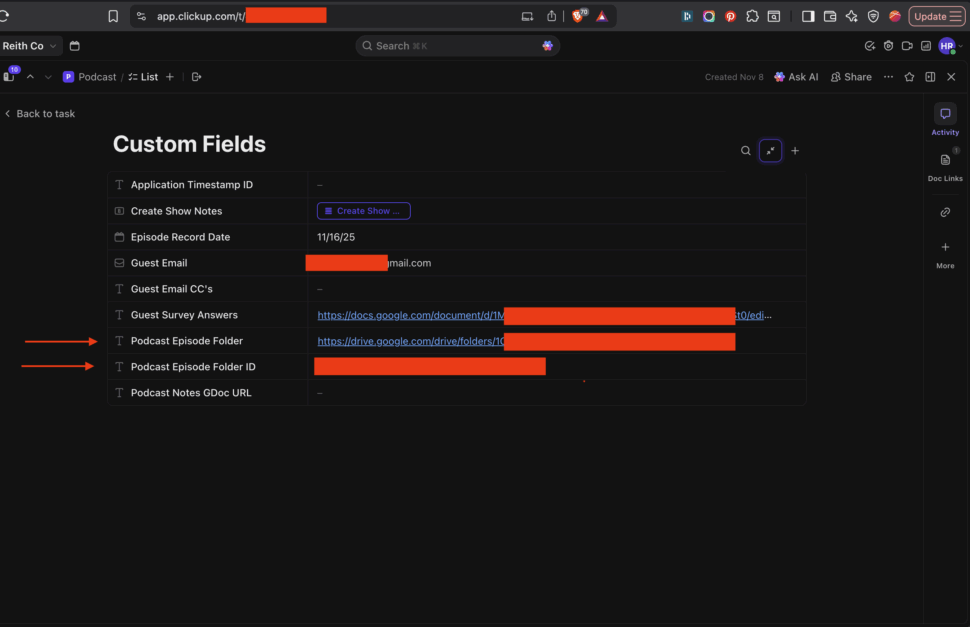
The new, clean solution: I only store the URLs in ClickUp (the human-friendly ones). When my Make.com scenario runs:
- ClickUp module: Get the task
- HTTP module (Batch API call):
json
{
  "urls": [
    "{{clickup.guestSurveyUrl}}",
    "{{clickup.episodeRootFolderUrl}}",
    "{{clickup.guestGuideUrl}}",
    "{{clickup.showNotesUrl}}"
  ]
}- Iterator or map() function: Extract the IDs from the batch response
- Google Drive modules: Use the extracted IDs to add files, update docs, etc.
Result: My ClickUp interface is clean and human-friendly (just the URLs I actually need to click), and my automation gets the IDs it needs with a single, cheap API call.
Cost: Instead of 4 separate Text Parser modules (4 operations), I make 1 HTTP request (1 operation) that processes all 4 URLs at once.
This is the “pro” way to build automations: keep your UI clean for humans, let the API handle the technical transformations behind the scenes.
The Bottom Line
You’ve just replaced a repetitive, maintenance-heavy module with a single, free, maintainable API call.
For single URLs: It’s cleaner and more portable.
For batch URLs: It saves you hundreds or thousands of operations.
For production workflows: It’s the professional way to build.
This is how you build automations that scale. One centralised tool. Zero repetition. Maximum efficiency.
Ready to start using it? Head to https://universal-google-drive-id-extractor.vercel.app and start making API calls. No signup, no API key, no cost.
Do you have ideas for other simple utilities that the community needs? Drop them in the comments – I’d love to hear what you’re building.
Frequently Asked Questions
Q: Is this API really free?
A: Yes, completely free. No API keys, no rate limits, no hidden costs. It’s hosted on Vercel’s free tier and designed to handle thousands of requests without breaking a sweat.
Q: What if I don’t trust using a public API?
A: Totally fair concern. That’s exactly why I made it open source. You can:
- View the complete source code on GitHub.
- Deploy your own private copy to Vercel, Cloudflare Workers, AWS Lambda, or any serverless platform.
- Audit the code to see exactly what it does (spoiler: it just runs regex and returns the result—no logging, no data storage)
If you want full control, grab the code and host it yourself. Takes about 5 minutes.
Q: Can this extract IDs from Google Sheets, Slides, and Folders?
A: Yes! The regex pattern is designed to handle all Google Drive file types:
- Google Docs
- Google Sheets
- Google Slides
- Google Forms
- Google Drive Folders
- Generic Drive files
As long as it’s a Google Drive URL, this API can extract the ID.
Q: What happens if the URL is invalid or doesn’t contain an ID?
A: The API returns a structured error response:
json
{
"success": false,
"error": "No Google Drive ID found in the provided URL",
"url": "https://example.com/not-a-drive-url"
}
This makes error handling easy in your workflows. Just check the success field before proceeding.
Q: How many URLs can I process in a single batch request?
A: There’s no hard limit, but practically speaking, I’d recommend keeping batches under 1,000 URLs per request to avoid timeouts. If you need to process more, just split them into multiple batch requests.
Q: Does this work with shared drive links and restricted files?
A: Yes! The API only extracts the ID from the URL structure—it doesn’t actually access the file. So it works regardless of:
- Sharing permissions
- Whether you have access to the file
- Public vs private files
- Personal Drive vs Shared Drives
It simply parses the URL format. What you do with that ID afterwards (in your Google Drive API calls) is where permissions matter.